Saturday, September 28, 2013

Teardown: Black & Decker PD1200 Dustbuster Flexi partial teardown - Battery and charging circuit analyzed

Some month ago I bought a Black & Decker PD1200 Dustbuster Flexi Vacuum cleaner
The Dustbuster Flexi PD120, in all it's glory :-)
Now, the PD1200 is a nice object, useful, functional, well-working... It only has a tiny defect, I've nicknamend it "DarinFast" (a mockup english translation for the italian "ScaricoFacile")
When it was new, the battery lasted 9 minutes... now I'm not brave enough to check them again... but I know batteries are getting worse.

I would like to use it to clean my car... but 9 minutes are not enough...
So today I decided to take a look inside the PD1200, to see if I can find a way to use an external power supply (like a car cigarette lighter).

So here are some shot of a partially dismantled PD1200.
I just opened the lower part, with the battery and the charging circuit.
To open the lower part, you need to remove the 8 screw that hold it to the motor block.
After removing these 8 screws, the lower part can be opened, but it will also detach from the main motor block (so keep a eye on the parts, and don't let them fall on your feet :-) ).

Click the image to see them bigger, these are Full Res photos.

Battery and cable,
The 2 battery pack are connected in series, via the yellow cable.


 Detail of one battery pack, the black wire go straight to the motor.
 
The battery pack can be lifted

 Under the other battery pack you can find the charging circuit.
 

 Some more circuit images

 Lateral photo of the battery pack/circuit/cabling.

Here you can see the connection between the battery block and the motor block.
Kudos to the Black & Decker engineering team for using a detachable connector.

The detached motor block

The detached battery block

Now get to the interesting parts.
Here you can see a schema of the connections/wires
The first block on the left is the charging circuit, I considered it a "black box" :-)
The wire on the left are the external power connector of the PD1200.

The battery have an interesting connection scheme: the positive wire is always connected to the motor, and to the charging circuit.
The negative wire from the battery get connected to the motor only when you switch on the PD1200
When the PD1200 is switched off, the negative battery wire is connected to the negative wire from the charging circuit.
In the drawing you can see the "connector" that connect the battery block to the motor block.
And the switch (I draw it under the motor) with the 2 possible connection (1 when it's switched on, 0 when it's switched off)
 After looking at the connection scheme I've answered one of my question:
Question: Can I modify something so that the charging connector can be used even as an external power supply?
Answer: No! because the charging connector is not in any way directly connected to the battery, nor to the motor.. and the charging wire between the charging circuit and the battery are much smaller than the wire that power the motor.

So, the only way to use an external power supply is to add another connector.
It should be a connector that interrupt the negative wire from the battery when in use: this way I will be able to leave the positive wire from the new connector always connected to the motor, and still be able to use the switch to turn the engine on and off.

Now here is some photo of a corner of the battery pack, where I think I could place a new connector.


Now I know what I nee to buy to mod my PD1200... :-)

Update: The PD1200 motor is power hungry :-)
Today did some test to check the power requirement of the PD1200 motor.
I detached the battery block from the motor block, and I put a tester between the motor ant the battery, to measure the current used by the motor.
I must say that I'm surprised: the PD1200 consume up to 10A @ 12V
This mean that the PD1200 have a 120W motor.
Now I understand why the PD1200 battery drain so fast, with a discharge current of 10A no battery can last much...

The battery pack inside the PD1200 probably have a capacity around 2000 mAh, this is compatible with the measured discharge time of about 9/10 minutes.

The PD1200 consume the maximum current (10A) when the motor is running at the maximum speed, and it's sucking only air, without obstruction.
If you close the suction tube, the motor run at a higher RPM (because the air pressure get lower, so with the same power it can move faster) and also use less current: with the aspiration hole totally obstructed it require 'only' 6.5A.

Now I know that if I want to use an external power supply, it must be able to give 10A, and must use big enough cable (the cable of the tester I user to check the used current got hot in just some seconds...)


Update: here is a link to an article that show how to change the NiMh batteries with lithium one

Original (in Spanish): http://www.jopapa.me/aspiradoralitio.html

Google-translated in English: https://www-jopapa-me.translate.goog/aspiradoralitio.html?_x_tr_sl=auto&_x_tr_tl=en&_x_tr_hl=it&_x_tr_sch=http

Saturday, September 14, 2013

Come scaricare la PEC di postacertificata.gov.it direttamente dentro Gmail

This post is in italian, because in Italy we have the so called PEC (a kind of certified email, more info there) so  the following information are relevant only for italian people.

Istruzioni:
Nei seguenti passaggi vi spiegherò come poter configurare il vostro account Gmail per scaricare la vostra Posta Elettronica Certificata dal sito postacertificata.gov.it , così troverete le vostre PEC assieme alle altre email e potrete leggerle comodamente.

1) Entrate nel vostro account Gmail

2) Aprite le impostazioni (vedi immagine)


3) Andate nella sezione "account"  (vedi immagine)


4) Cliccate la voce "Aggiungi un tuo account di posta POP3" (vedi immagine)

5) Si aprirà una finestrella come la seguente, inserite il vostro indirizzo PEC, ad esempio  pincopallo@postacertificata.gov.it

 poi andate al passaggio successivo


6) Ora avrete una finestra come la seguente
 compilate tutti i campi:
*) campo Nome utente : inserite il vostro indirizzo PEC (per esempio pincopallo@postacertificata.gov.it)
*) campo Password : inserite la password della vostra PEC
*) campo Server POP : inserite mail.postacertificata.gov.it  (alle volte è già inserito, nel qual caso va bene così)
*) campo Porta : mettete il valore 995

*) SPUNTATE il campo "Lascia una copia del messaggio scaricato sul server" (così vi resterà una copia della vostra PEC sui server di postacertificata.gov.it )

Salvate le modifiche e passate alla schermata successiva

7) Troverete una schermata come la seguente
Selezionate la voce NO
e cliccate Fine

8) Finito :-)
Ora il vostro account Gmail provvederà a scaricare automaticamente le vostre PEC, così le troverete assieme alle vostre altre email, e potrete leggerle direttamente dentro al vostro account Gmail.

IMPORTANTE:  Se vi scade la password della PEC, o se la modificate, GMail non riuscirà più a scaricare le vostre PEC. Quindi dovrete tornare nelle impostazioni, ed aggiornare la password con quella corretta.

Per aggiornare la password dovrete tornare nelle impostazioni (vedi passo 4),
poi dovrete cliccare la voce "modifica informazioni" (vedi immagine)


a questo punto vi ritroverete in una schermata come la seguente


Cliccate su "modifica password", inserite la password nuova, e salvate le modifiche.
Così Gmail  riprenderà a scaricare le vostre PEC.

Friday, August 16, 2013

IMHO the new GMail compose window is ridiculous - GMail Alternative short list

IMHO the new compose window in GMail is ridiculous...
Today I started thinking about alternative service, so I thought "I'll make a short list of GMail alternative, and I'll post it to Google Plus"

And the thing started to become even more ridiculous... :-)


I tried to pose the following text on G+,

About the new GMail Compose Window... It's ridiculous.
Google is really going beyond the limits :-(

I've just compiled a short list of GMail Alternative, just in case.
I've never been so near at trashing GMail :-(
And That's sad, because there was a time when GMail was the coolest email account... but maybe that those days are finally gone.

Anyway, here is my the Gmail Alternative short list:

http://www.gmx.com/
https://www.zoho.com/mail/
http://www.mail.com/
http://shortmail.com/
http://www.inbox.com/
http://mail.yandex.com/
http://www.hushmail.com/
http://outlook.com/
http://yahoo.com/

Feel free to add other alternatives in the comments :-)
And guess what?
I got a fancy message saying that "This post violates our policies; it's visible only to you" I cant believe it... whats wrong with this post? maybe too many links? :-)


Yes, there was too many links...
But now it seem that I've been able to post this without links, and then I've added back the links by editing the post after sharing :-)


Finally I made it, the second post on G+ is now visible, with all the links :-)

Happy GMail Alternative testing to everyone :-)

Saturday, June 1, 2013

Synology DS213j: review and power consumption test with WD RED 3Tb HDD

I was looking at Synology Nas from long time.
I knew that if I waited enough, they would release the right Nas, with the right spec, at the right price.
And 2 weeks ago this time went. And I placed an order for my new Nas, the Synology DS213j.
I also ordered the HDD for the Nas: 2 Western Digital RED 3Tb HDD (WD30EFRX).

Why the DS213j?
  • because i need an external backup
  • because the price is good
  • because it consume 3.65W in HDD hibernation
  • because it's powerful
  • because it have 512Mb of Ram
  • because I like the DSM (Disk Station Manager, the OS of the Synology Nas) and all it's addons, especially:

Here is the Synology DS213j, in all its glory :-)

Synology Disk Station DS213j Review photos, benchmark, and power consumption testSynology Disk Station DS213j Review photos, benchmark, and power consumption test


Synology Disk Station DS213j Review photos, benchmark, and power consumption testSynology Disk Station DS213j Review photos, benchmark, and power consumption test

Now, one of the reason that pushed me toward the DS213j was one of its specs: a power consumption of 19W when working, and a very low power of 3.65W in HDD hibernation.
The 3.65W in HDD hibernation is very important, because I use my home PC mainly in the evening (19..24) so for the big part of the day (00..19) the NAS will be sitting idle.
Now, if the NAS is powered on 24h/day, even a tiny power consumption will build up.

So, based on my utilization profile, I can calculate the impact on the electricity bill.

Let's try to asses how much will cost to run a DS213j 24h/day for a year.

For each day I have about 5 hours of active utilization, and 19 hours of Nas sitting idle.
lets say 6 vs 18 hours (using a HDD hibernation delay of 1 hour)

So, for the normal working days, we have
1 day power = 6h*19w + 18h*3.65w =  114wh + 65.7wh = 179.7wh / day

But in the week end I spend more time with my PC, so it will be more something like
1 day power = 16h*19w + 8h*3.65w =   333 wh /day

In a year this will build up to:
1 year power = 333wh * 104d + 180wh *261d = 35kwh + 47kwh = 82kwh

You can't ignore 82kwh / year.

The electricity, in Italy, is between 0.2€/kwh and 0.4/kwh (depending on contract), so 82kwh/year will set you back between 16.4€ and 32.8€ / year
Having a NAS that consume about 3.65w during HDD hibernation is beneficial for the electricity bill :-)

About the HDD choice
I bought 2 Western Digital RED 3Tb HDD (WD30EFRX), to use in RAID 1 configuration.
These drives have some advantage over the competition:
  • they are built specifically for NAS usage
  • they consume a bit less than the others WDC models (4.6W read/write, 4.1W idle, 0.6w standby)
  • they are sufficiently cheap

The testing setup
Synology Disk Station DS213j Review photos, benchmark, and power consumption test
The PC (i7-3770k overclocked @4.5Ghz, 16Gb ram, ASUS P8Z77-V Deluxe, SSD Intel 520, bla-bla-bla-yada-yada.... :-) ) and the NAS are connected via a Netgear WNDR 3700v2 gigabit router (not shown in the photo, it's hidden over the furniture :-) ).

The DS213j power consumption test.


The testing equipment is a cheap power meter, that can measure consumption up to 2000w, so I wont  expect a 0.1w precision in the 0w to 20w range... anyway, it's better than nothing :-)

DS213j power consumption during boot process: it oscillate between 5w and 16w
Synology Disk Station DS213j Review photos, benchmark, and power consumption testSynology Disk Station DS213j Review photos, benchmark, and power consumption test


DS213j power consumption at idle, just after booting the Nas: it's stable at 15w
You can see the nas doing nothing, just logged in DSM
Synology Disk Station DS213j Review photos, DSM, benchmark, and power consumption testSynology Disk Station DS213j Review photos, DSM, benchmark, and power consumption test

DS213j power consumption during data reading operation: it's stable at 16w
In the screenshot you can see the statistics in the DSM, I was copying a single big 10Gb file from the Nas to my PC, the data is being copied at a rate of about 71Mb/s.

Synology Disk Station DS213j Review photos, DSM, benchmark, and power consumption testSynology Disk Station DS213j Review photos, DSM, benchmark, and power consumption test


DS213j power consumption during data writing operation: the power consumption is stable at 17w.
In the screenshot you can see the statistics in the DSM. I was copying the same 10Gb file from my PC to the Nas. The file is being copied at a rate of about 64Mb/s. (I made my test with HDD write cache disabled, enabling write cache may enhance performance)
Synology Disk Station DS213j Review photos, DSM, benchmark, and power consumption testSynology Disk Station DS213j Review photos, DSM, benchmark, and power consumption test


 Finally, DS213j power consumption during HDD Hibernation: ...wait for it... wait  for it... 4w!
Synology Disk Station DS213j Review photos, DSM, benchmark, and power consumption test
Eureka! It works (as expected)! Just 4w!
My power meter have a 1w precision... so I will simply assume that the Synology specification are correct about the 3.65w consumption during HDD Hibernation)
Here I don't have a DSM screenshot for the HDD in hibernation state, because accessing the DSM will wake up the HDD.


Additional power consumption testing

Power consumption during a scheduled  Power Off
As requested by a commenter, I've tested the power consumption during a scheduled power off.
After a scheduled power off the DS213j consume 0W , so it's effectively turned off.
Keep in mind that a scheduled power off will have a bit of delay.
On my DS213j, when I schedule a power-off at 15:00, the DS213j will effectively power-off at 15:01.47, about 1 minute and 47 seconds later than the scheduled power-off .
Instead, if you request a power off with the Nas GUI, it will effectively shut-down in about 47 seconds.

Power consumption and Wake On Lan (WOL)
On DS213j you can activate the WakeOnLan function.
When the WOL function is active you can Power On your DS213j via the network.
If the WOL function is active, and the DS213j is powered off, the power consumption is still 0W.
(Well... some time the power consumption have a short spike to 1w or 2w for about 1 sec, but this happen every 2/3/4 minutes... with my power meter I cant do a better analysis of the phenomenon. Anyway, this may be totally unrelated to the WOL feature.)
After activating the WOL function I used a free utility (Depicus wolcmd command line) to test it, and the Wake On Lan worked perfectly.


DS213j FAQ, Tips, Tricks... & Quirks

How much time will take a backup?
My first full backup (850Gb of data on more than 700'000 files.) took about 10 hours. I made it using SyncBack. Your mileage will vary wildly (depending on files size, files count, software used...).

How much time take to sync data with Cloudstation?
I started today to use Cloudstation to sync about 8.5Gb of data (about 18'000 files) it took about 6 hours to sync (upload) all the data from my PC to the NAS. Your mileage may vary.
The maximum Cloudstation upload speed I've seen (from PC to NAS) is about 8Mb/s, when transfering a single very big file (2Gb).
Update: After updating the nas to DSM v4.3 the Cloudstation got faster, now it upload data (from PC to NAS) at about 11Mb/sec (on very big files).

How much space will use the Cloudstation sync service?
If my preliminar understanding are correct, it take AT LEAST two times the size of the data you want to sync.
Do you want to sync 10Gb of data? For these 10Gb of data, Cloudstation will employ at least 20Gb of disk space on the NAS.
But It can use much more than 20Gb of  space, because by default Cloudstation save the last 32 versions of any synced file. So If you edit often a 100Mb file, this may occupy up to 100Mb*32 = 3.2Gb of space on the NAS.

Why the free space on the NAS doesen't increase when you delete some files?
If these file are these file synced via Cloudstation, you need to remove the file from the cloudstation history/recycle bin.
Log in the NAS using the account of the user using the sync service (the admin user wont works), then: Open CloudStation, open the Recycle bin, Select the synced shared folder, and remove the old files.

Why the free space on the NAS, still, doesn't increase when you delete some files?
Are the deleted files in a shared folder that have the recycle bin enabled?
Log in  in the NAS as administrator, open control panel, open the shared folder list, then click "Action" and you'll be able to click "Empty all recycle bins" (for all shared folders) .

TimeBackup: dedicated volume required
The TimeBackup package WILL NEED a "dedicated" volume as a destination for your backup.
You CAN'T use the TimeAckup to backup MyShare on Volumne1 to MyTimedBackupShare on Vloume1. If MyTimedBackupShare is the destination of your TimeBackup, it will need to be on a different volume (Volume2, Volume3...)
This have some implications: you will need to do a planing, do some test, and decide beforehand how much space you are going to dedicate to the TimeBackup function, then  you will create a volume of the needed size.
I used 3Tb HDD in Raid 1, these are effectively about 2780Gb of total space.
I've create a Volume1 of 2000Gb, and a Volume2 of 780Gb.
The Volume1 will contain the shared folder for my data.
The Volume2 will contain the shared folder I will use as a destination of the TimeBackup function.

You CAN'T shrink a volume
On Synology DSM, you can grow a volume (if you have free space) but you CAN'T shrink a volume.
So, I have 2 volumes: Volume1 = 2000Gb, and volume2 = 780Gb.
If I want to grow Volume1, The only way is to delete volume2, then grow volume1, then recreate volume2. You CAN'T shrink volume2, even is it's totally free and unused.
This mean that if you want to use the TimeBackup function, you need to think carefully about how to size your volumes.

Wake On Lan function after a blackout
During my testing I discovered a tiny quirk of the WOL feature.
If you power-off the DS213j 'normally' (by the GUI, or by the button) the WOL function will work perfectly.
But if the DS213j is powered off, and you detach it from the power, the WOL function get 'deactivated', and wont work. In this situation, to power on the DS213j, you need to push the button.
Clearly the WOL function still use a very tiny bit of power, and unplugging the power cable disable the WOL function.
To sum it up: the WakeOnLan function wont work after a blackout :-)


Additional speed testing over WiFi/Smartphone
I've tested the files transfer speed between the Nas and a smartphone over a WiFi network.
  • Smartphone: Samsung Galaxy S4
  • Router: Netgear WNDR3700v2
  • WiFi: 5GHz,  WPA2/PSK
  • The Galaxy S4 link speed: 150Mbps.
  • The Galaxy S4 distance from the router: less than 2 meters
  • The NAS is connected to the router one a Gigabit Lan port
The test: I downloaded 6,89 Gbytes of data (1534 files) from the Nas to the internal memory of the Galaxy S4 using the DSFile App.
The DSFile App is setup to use an HTTP connection.

The files got transferred to the phone in about 1427 sec, the mean download speed is 4,95 MBytes/sec
I think this is s not bad at all, after considering that it's a real data-transfer speed over WiFi for a smartphone.
The network transfer speed reported y the Nas Resorce Manager oscillated between 2MBytes/sec and 8MBytes/sec.
The maximum speed is clearly limited by the WiFi connection, and/or by the smartphone.


Conclusion
I'm very happy about my brand new DS213j, I love the DSM and it's packages.
I'm also very happy about the HDD choice, using a pair of 3Tb WD RED the maximum power consumption is about 17W when writing, 15W when idle, and less than 4W during HDD hibernation.
Exactly what I was expecting :-)

If you have any questions about the DS213j: feel free to ask. :-)

Friday, March 22, 2013

Eclipse: Create project from existing source - How to import existing Java/Android Project into Eclipse

It seem that a lot of material on the internet, and even some Android books, refer to a mystical "Create project from existing source" option of the new project wizard in Eclipse.
I didn't know how Eclipse looked in the past, but now, in Eclipse Juno, there is no such option.
But you can still "Create project from existing source", and I'll show you how to do it :-)

I created a simple step-by-step visual guide about how to create a new project from existing source.
In this guide I've used Eclipse Juno (from the Android SDK)


1) Start Eclipse and open a new/empty workspace 


2) Click the Import command, in the File menu


3) Choose "Android\Existing Android Code Into Workspace" and click "Next"


4) The following screen will appear, we need to insert the folder path of the source files we want to use as base for our new project: we can use the "Browse" button or...


5) We can simply Copy/Paste the path of our source files :-)


6) Paste the path of our source project folder


7) Click the "Refresh" button: this will update the list of source project(s)


8) Eureka! Now we have the list of our much wanted source project(s)


9) Now, don't be hungry, click the "Deselect All" button, to uncheck all the projects


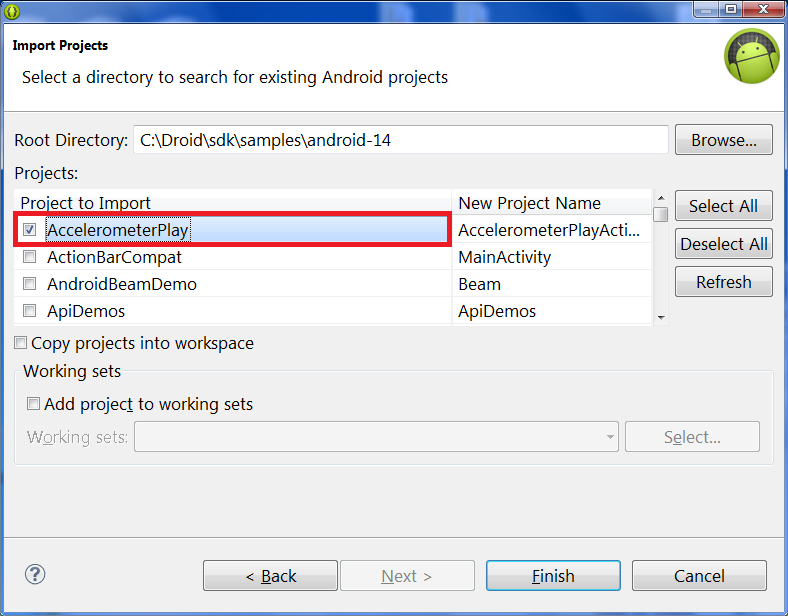
10) and now select the project you really want. I'll go for the AccelerometerPlay, I always liked the interesting things you can do with modern smartphone sensors... :-)


11) Check the option "Copy projects into workspace" so you'll work on a copy of the original project. It's best to not mess up with the original SDK samples, you never know when you'll need them again :-)


12) Click "Finish" aaaaand....


13) You are done! Welcome your new project freshly copied from the SDK source :-)


P.S.: Can you guess that the first programming language I learned was Borland Turbo Pascal 5?
The blue background IDE of those good old days left a sign in my infancy... and even 22 years after, I still feel at home with a dark blue background, yellow keywords, and white identifiers! :-)


In case you like it, here is a link to my Eclipse color theme (MaxDarkBlue Eclipse theme), It's a work in progress... but for my eyes it seem better that other themes I've checked :-)